
Most people open Gmail, read what arrived, reply, and close the tab. The settings that save real time sit one click away from that routine and rarely get touched. This set of gmail tips and tricks comes from a live online class where the teacher walked his students through the features he actually uses: scheduling an email for an exact minute, sending mail that cannot be forwarded or printed, fixing a proper signature, changing the inbox background, and handling messages from the right-click menu without opening them at all.
None of this needs an add-on or a paid plan. Every option below is already inside a standard Gmail account, in the compose window, the settings panel, or the message list itself.
How do I schedule an email in Gmail to send later?
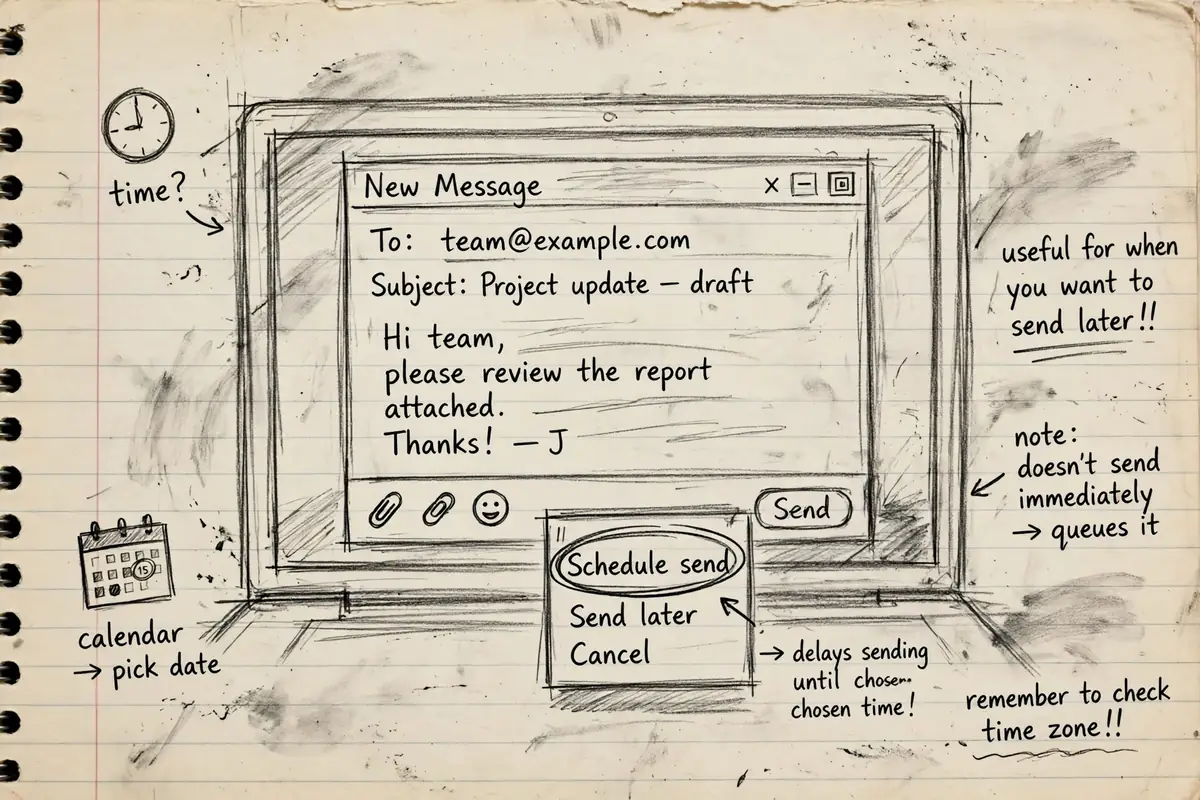
You finish an email at night, but it should reach people in the morning. Or a timetable has to land in inboxes at 11:51, not whenever you happen to press send. Schedule send handles that. The email waits in a holding area and goes out on its own at the moment you picked.
- Click Compose and write the email as usual. Add the recipients, the subject, and any attachment, such as a PDF.
- If the small compose box feels cramped, open it in the full screen view first so you can see everything.
- Instead of clicking Send, click the small arrow right beside it. That arrow is called More send options.
- Choose Schedule send from the menu that opens.
- Gmail offers ready-made times first, such as tomorrow morning or this afternoon. To set your own moment, click Pick date and time.
- Set the date and the exact time, then click Schedule send.
Right after scheduling, Gmail shows an Undo option. If you picked the wrong time, that is your window to pull it back immediately.
Where the email waits until its time comes
A scheduled email sits under Scheduled in the left sidebar of Gmail. It stays there until the clock reaches the time you set. Once it has been sent, it leaves Scheduled and appears in Sent like any other email. If nothing is waiting, the Scheduled entry has nothing to show.
Send an email nobody can forward, copy, or print
A normal Gmail message gives up control the moment it arrives. The other person can forward it to anyone, download it, or print it and hand out copies. That is a problem when the content is a username and password, a question paper, an official document, or personal photos you are sharing with one trusted person who might pass them on by accident.
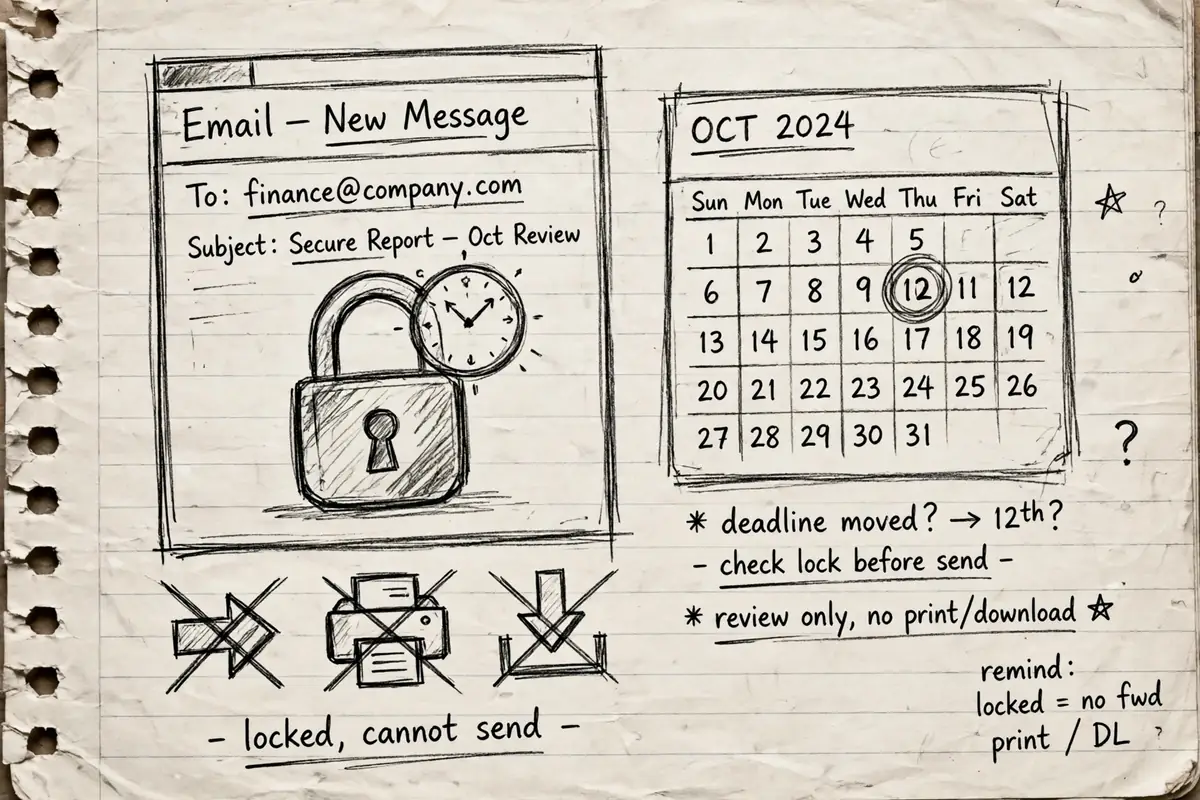
Confidential mode is Gmail’s answer. The message stays visible only for the time you allow, and the usual ways of spreading it are switched off.
Turn on confidential mode before you send
Compose the email first. Along the bottom row of the compose window, among the formatting and attachment options, sits Turn on confidential mode. Click it before you send, and a settings panel opens for that one message.
Set the expiry, with or without an SMS passcode
The panel asks how long the email should live. You can set the expiry to one day, one week, or a date of your own choosing. In the class demo, the teacher set the message to expire on Tuesday, January 5, 2021, and after that date the email removed itself from the recipient’s inbox on its own.
You also choose a passcode setting. With No SMS passcode, the recipient opens the email directly. With the SMS passcode option, Gmail sends a six-digit password to the recipient’s mobile number, and the email only opens after they type it in. The teacher’s reasoning was simple: friends sometimes open each other’s inboxes, and the passcode keeps a confidential message closed even then.
Pick your settings, click Save, and then send the email.
What the person at the other end sees
A confidential email looks noticeably stripped down. There is a Reply option, but no Forward option at all. The text cannot be copied; it will not even select when dragged over. Printing is blocked too, and if the recipient tries, they get a notice saying the content is confidential and cannot be printed or downloaded. When the expiry date passes, the message is deleted from their inbox automatically.
Add a signature so people know who sent the mail
A signature is the block of details at the bottom of your email: your name, your designation, where you work, your email address, your mobile number. It matters for official communication. Without one, a recipient may see only a display name made of initials and have no idea who wrote to them until they open the message and dig around.
Create it from the compose window
You can reach the signature settings through Settings, but the class used a shorter route that starts where you already work:
- Open Compose and switch to the full screen view.
- Find Insert signature along the bottom of the compose window.
- Click it and choose Manage signatures. This opens the signature section of Settings.
- Type your details in the box: name, designation, email address, mobile number. Font and color controls are there if you want them.
- Scroll down and click Save changes.
From then on, the signature appears in the compose window whenever you write a new email, and you type your message above it. If you like the format of a signature someone sent you, you can also copy theirs into the box and edit the details into your own.
Leave it off for one email
Signatures are not forced on every message. Open Insert signature in the compose window and pick No signature, and that email goes out bare. Pick My signature when you want it back. It is a per-email choice.
Change the background of your inbox
The default white inbox is not the only option. Settings holds a Themes section, and clicking View all opens a gallery of background images. Select one, save, and the whole inbox changes behind your message list.
Pick a theme, or use your own photo
Under My photos you can upload a picture of your own and set it as the background. The teacher suggested a practical use for this: if you run an official account through an organisation, put the organisation’s logo behind it. One glance at the background then tells you whether you are in your official inbox or your personal one, before you send something from the wrong account.
Text background and blur
Theme settings also include a text background option and a blur control. Blur comes in a light blur and a dark blur, and it softens a busy photo so your email list stays readable on top of it. Set it, save, and change it again whenever the picture starts to wear on you.
Gmail tips and tricks hiding in the right-click menu
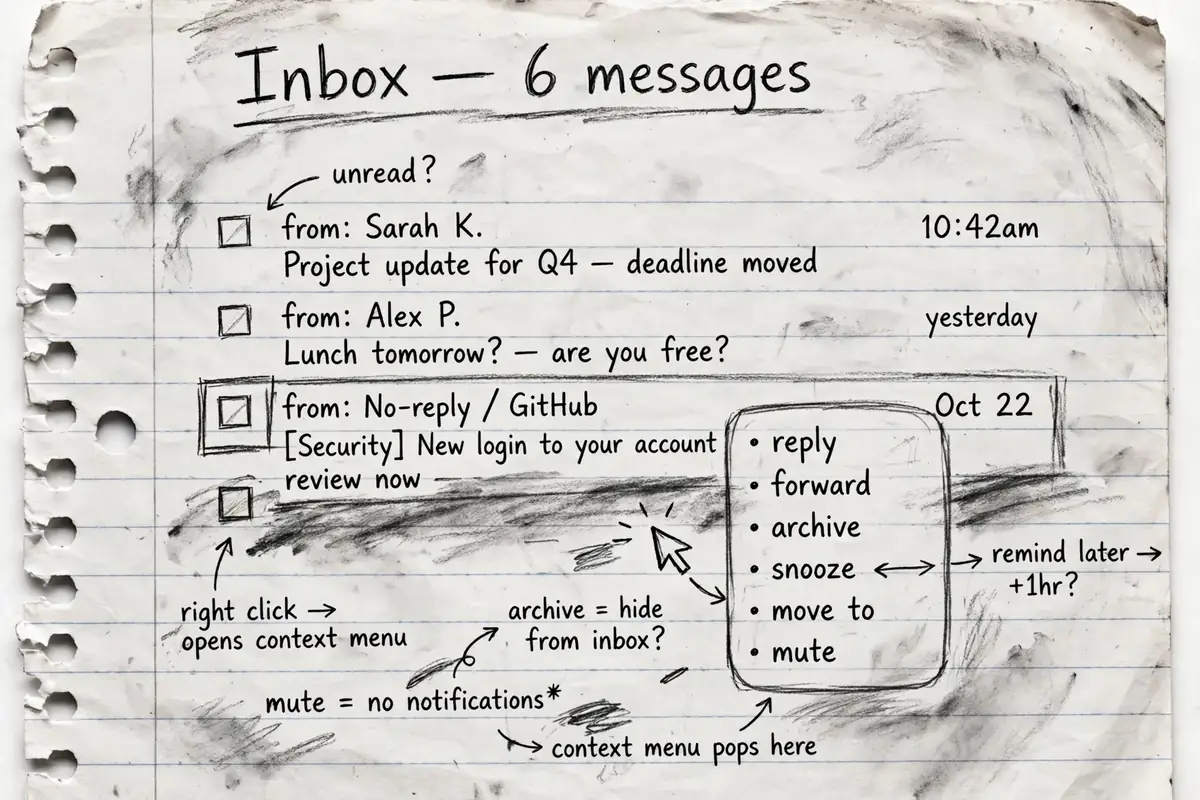
Opening every email just to deal with it wastes time. Right-click a message in the inbox list, without opening it, and Gmail offers a full menu of actions for that message. For a busy inbox, this menu alone can cut the daily clicking down a lot.
Reply, forward, and forward as attachment
Reply and Reply all are both there, for answering one sender or everyone on the thread. Forward sends the message on in the usual way, and Forward as attachment packages the original email as an attachment to a new message instead.
Archive, delete, mark as unread, mute
Archive files a message away without deleting it, so it leaves the inbox but is still there when you need it later. Delete removes it. Mark as unread puts a message back to unread state, handy when you opened something by accident or want it to demand your attention again later. Mute silences a conversation that keeps pulling you back in.
Snooze it until the moment you need it
Snooze works like a sleep mode for email. Pick a time, tomorrow at 12:00 in the teacher’s example, and the message disappears from your inbox until that moment. At the set time it becomes visible again, when you are actually ready to act on it.
Move it to a folder, or turn it into a task
Move to files the message into one of your folders or labels, and you can create your own label names to sort mail the way you think about it. The same menu can send a message to Google Tasks, where it becomes a day-to-day task you can mark as finished once the work in it is done.
Start with the two settings you will use daily
If you change nothing else, set up the signature and try scheduling one email. The signature fixes how every message you send looks from today onward, and schedule send ends the habit of firing off emails at odd hours just because that is when you wrote them. Confidential mode, themes and the right-click menu will be waiting in the same places the next time you need them.