
Most print on demand tutorials are recorded by people who move the mouse faster than you can follow. This lesson in print on demand for retirees is different: the teacher works at her student’s pace, and the student is a 68-year-old who once opened a Canva account, found it too complicated, and deleted it. If the steps below feel slow, that is the point. Nothing here assumes design experience.
The model is simple. You make a design once, a company prints it onto a shirt, mug or duvet cover when somebody orders, and you never buy or store stock. If the model is new to you, our beginner guide explains what print on demand is and how it works first. This post covers the design file, made in Canva.
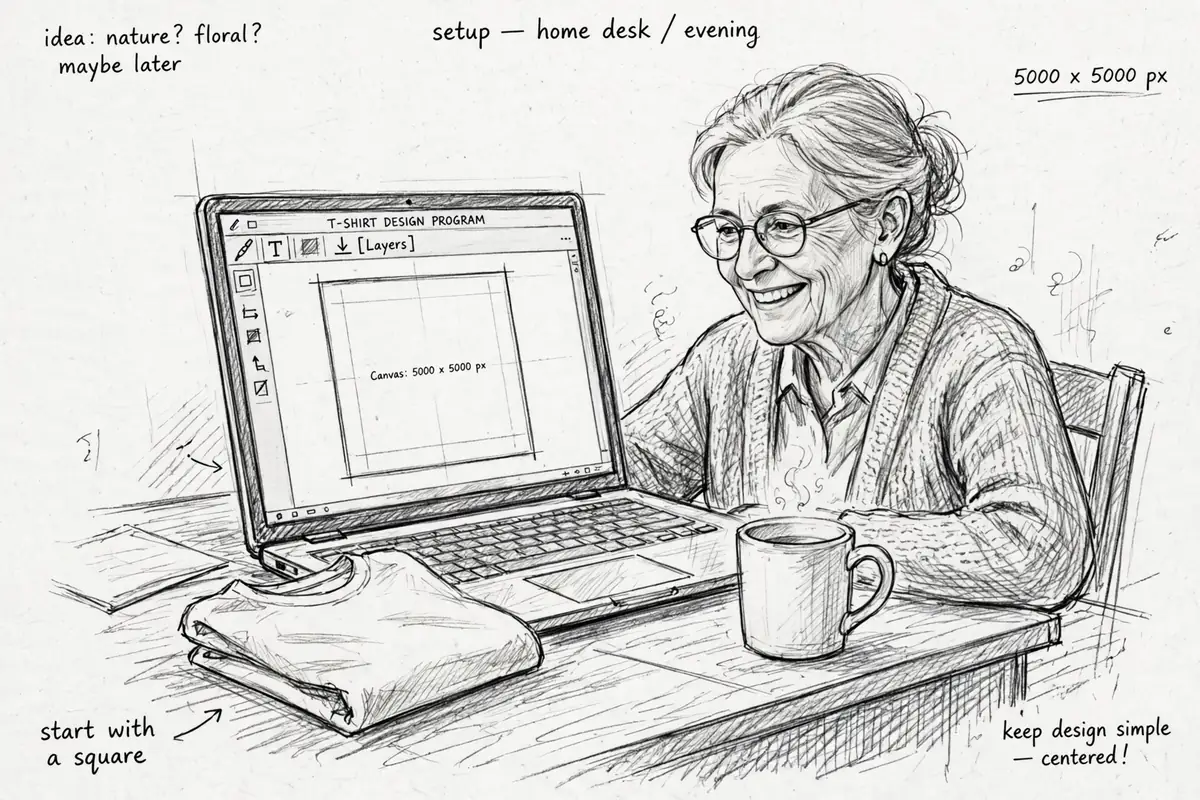
Why print on demand for retirees makes sense
The appeal is not only the money. The work fits around your life: no stock to pay for up front, nothing to store in a spare room, and a finished design stays on sale while you get on with other things.
Treat the income honestly. Royalties from a handful of designs will not replace a pension. What they can become is one small income stream among several, which is how most extra income is actually built. We covered that bigger picture in our guide to how to make your first million: small streams, added patiently, are what add up.
Before you start: the Canva Pro question
A free Canva account takes a couple of minutes to open. For learning your way around, free is fine. For selling, the tutorial is blunt about one limitation: the free version only downloads your design with its background attached, and a background panel printed around your artwork looks cheap on a shirt. The transparent background option you need sits behind the paid plan.
What the paid plan costs, and the trial trap to avoid
In the tutorial, Canva Pro shows at £100 a year or £13 a month. Prices vary by country; check yours. There is a free trial of about a month, and the teacher’s advice is to put a reminder on your calendar, or a note by the computer, to decide before it ends. Canva says it sends its own reminder seven days before. Rely on yours anyway.
One more piece of advice matters more than any setting: do not try to learn everything Canva can do. Learn the small set of features below and use them until they feel ordinary.
Step 1: Set up your canvas at the right size
Click “Create a design”, choose “Custom size”, and change the unit from inches to pixels before you type anything. The order matters: type first and switch second, and Canva converts your numbers into a canvas size you never asked for.
Now enter 5000 by 5000 pixels. That is the largest square Canva allows, and much bigger than it looks: in print terms it is large enough to cover a duvet cover without going fuzzy. Start big, because a large design can be shrunk onto a shirt later, while a small one stretched up loses quality. If you prefer a rectangle, the tutorial uses 4500 by 5400 for portrait and 5400 by 4500 for landscape. A square is easiest to picture, so start there.
Step 2: Add your words or your artwork
There are two easy ways in. Under “Uploads” you can bring in your own material: a photograph, or a painting or drawing you have scanned. If you have boxes of artwork that have never earned you a penny, this is a way to use them.
The other way is text. Click “Text”, add a text box, and type your phrase. The student in this tutorial plans exactly that: typographical designs, words as the artwork. It is a forgiving place to begin. Drag a corner of the text box to make it bigger, and stretch the design to fill most of the canvas.
Step 3: Choose a font that survives the wash
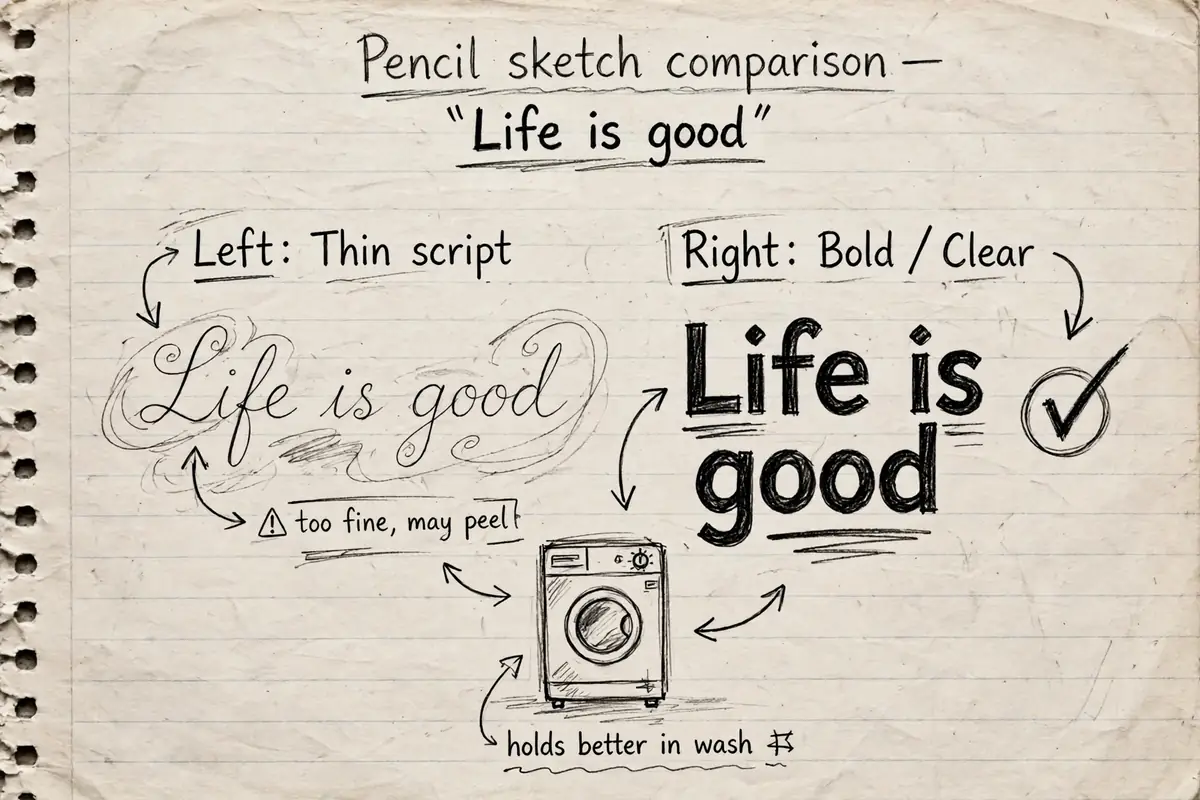
Canva’s font library is huge, and the prettiest fonts are often the wrong choice for clothing. Some printing methods dye the design into the fabric and cope with fine detail. Others stick the design onto the surface of the garment, and a thin, spindly script has almost nothing to hold on with. Wash after wash can lift it away.
Pick lettering with some thickness to it. Hard-to-read text also makes strangers lean in close to puzzle it out, which is nobody’s idea of fun when the text is on your chest. Bold and readable beats delicate on a shirt.
Step 4: Centre it, space it, and keep it together
Two controls get confused, and separating them clears up half of beginner frustration. “Position” decides where the whole text box sits on the canvas: centre, middle, top, left. “Alignment” decides where the words sit inside their box. For most designs you want the box centred and in the middle, so it needs no adjusting from product to product. Pink guide lines appear when you drag an item through the centre, so you can check by eye too.
A few working habits from the lesson are worth copying:
- Highlight all of your text before changing font or size, or only the selected line changes and it looks as if Canva is ignoring you.
- Use the “Spacing” controls to open up or tighten letter spacing and line spacing until the words sit comfortably.
- Drag a box around separate pieces and use “Group” so they move as one object; “Ungroup” separates them again.
- Use a mouse if you can. This work is noticeably harder on a laptop trackpad.
- Remember the undo arrows, or Ctrl+Z (Cmd+Z on a Mac). A mistake costs one click; you cannot break anything by experimenting.
Step 5: Pick colours that work on real shirts
Colour choice starts with a buying fact from the tutorial: black t-shirts sell far better than white ones, so black words would vanish on the best-selling colour. Choose a colour with enough contrast to hold up on black and on white. The lesson lands on teal, but any colour you can read easily at arm’s length passes the test.
Two cautions. First, note the colour’s hex code from the colour picker, so you can find the exact shade again. Second, do not use the transparency slider to fade a colour. Some printing methods cannot reproduce a half-transparent colour at all, since materials like vinyl come in solid blocks. If you want grey, choose a grey. Of the text effects, the curve is harmless fun; glitzy shadows and outlines are best left alone, because a printer has to reproduce whatever you create.
The one rule you must not break: Canva elements
Canva’s “Elements” tab holds ready-made graphics and photos, and it is tempting to drop one onto a shirt and call it a design. Do not. Those items are licensed as ingredients, not as finished products. Using a single element on its own as your whole design breaks Canva’s licence terms, and Canva can refuse the download.
The fix is simple: make the element part of something you built. Add your own words to it, combine it with another element, change it substantially. If you are unsure about an item, open the three dots beside it and read how it may be used. The Elements filter can also show only free items, a safer pond while you learn.
Step 6: Download the file the right way
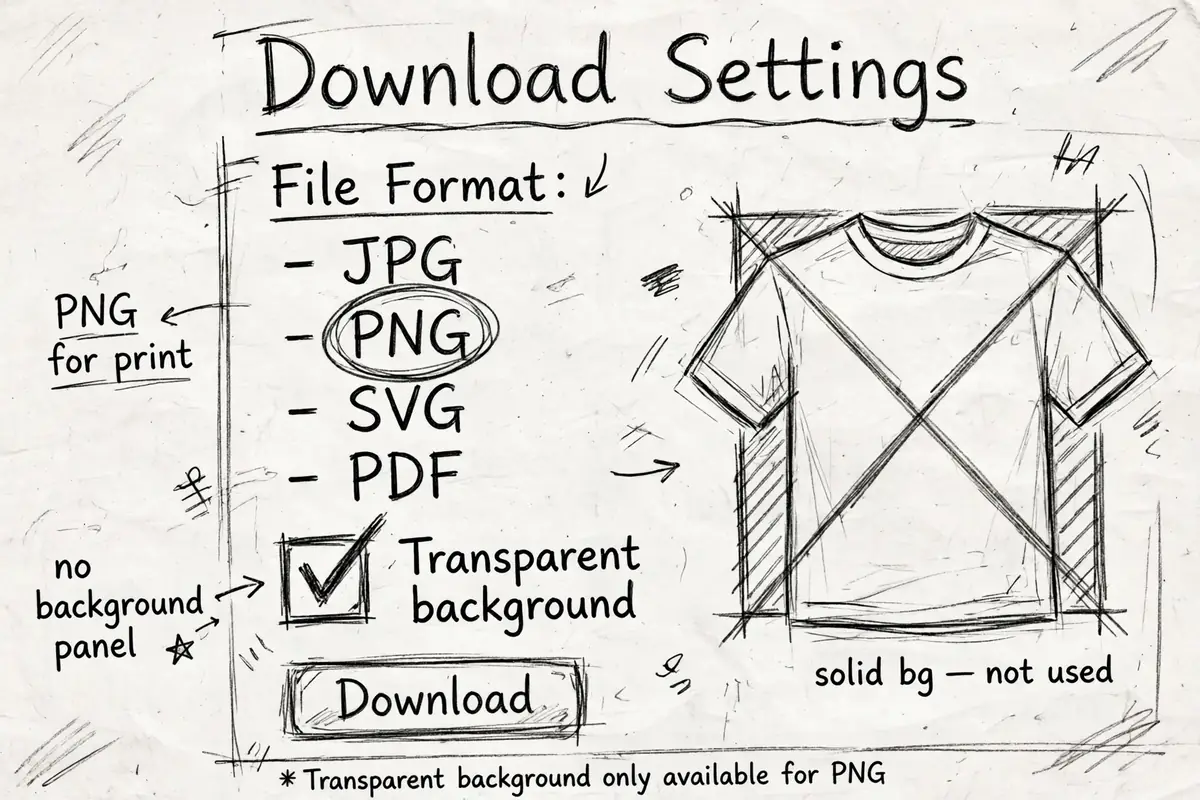
When the design looks right, group it, centre it one last time, and go to “Share” then “Download”. Choose PNG. It is the high-quality format, and every print on demand platform accepts it, which matters if you later sell elsewhere. JPEG is smaller and fine for email; PNG is the one for print.
Then tick “Transparent background”. Skip it and your file keeps the colour panel behind your design, and that solid rectangle is what gets printed. It never quite matches the garment and always looks like a mistake. This setting is a Pro feature, which is the real reason the paid plan matters.
Save the file under a name you will recognise in six months. “Final-final-2” is a design lost; the words in the design plus its first product still make sense when you reuse the artwork later.
Can I start print on demand in my 60s or 70s if technology does not come easily to me?
Yes. The student behind this tutorial is 68, and what made the difference for her was not talent. It was learning only the handful of features the job needs, at a pace where each one could settle, and knowing the undo button makes every mistake reversible.
Borrow the same conditions. Set aside quiet time, and work through one design from canvas to download. Expect the first to take a while and the fifth to take a fraction of the time: it is the same small set of moves each time. Age is not the obstacle here. A rushed tutorial is.
Your first design does not need to be clever. It needs to exist, saved as a clean PNG with a name you can find again. Start there.
Disclaimer: This article is educational content about a design tutorial. It is not financial advice, and it does not promise any income or result. Earnings from print on demand depend on your designs, your effort and your circumstances.